

How to Set Up a Gmail Shared Inbox (2026 Guide)
Many companies run their entire operation on Google Workspace. Gmail is incredibly popular because it is easy to use and packed with solid organizational tools. The problems only start when multiple people try to manage the same group email addresses.
The standard process feels clunky. Teammates end up forwarding emails just to ask a quick internal question. Hitting reply-all creates an overwhelming flood of notifications for everyone else on the team. Worst of all, you have zero visibility into who is actually handling a customer message and what still needs a response.
That is exactly why growing teams set up a Gmail shared inbox.
This guide walks you through how to create a collaborative inbox in Google, how to manage your daily conversations as a team, and why upgrading to dedicated shared inbox software like Front makes everything much simpler.
Here is exactly what we cover in this guide:
- What is a Gmail shared inbox and what are Google Groups?
- Which sharing option fits your team, and what does each one cost?
- Shared inbox or distribution list: how to tell which one you need
- Why do teams use a Google collaborative inbox?
- How do you create a shared inbox with Gmail?
- What are the specific limitations of standard Gmail shared inboxes?
- Why do top teams manage their communication in Front instead of a basic Google group?
What is a Gmail shared inbox, exactly?
When teams need to manage customer emails together, they often look for a Gmail shared inbox. Google officially refers to this feature as a collaborative inbox, which operates as a specific type of Google Group within Google Workspace.
Having multiple teammates handle messages by sharing a single login is asking for trouble. It limits your tracking capabilities and poses a major security risk for your accounts. You will also quickly hit the standard usage limits. This often triggers a temporary account shutdown.
That is exactly why Google built specific functionality to help teams manage communication together using Google Groups.
What is a Google Group?
A Google Group lets teams communicate and organize information. You can set up four main types: an email list, a web forum, a Q&A forum, and a collaborative inbox. People often confuse this with a simple distribution list. A group actually lets you email everyone at once, schedule meetings, or share files across the team.
What is a Google collaborative inbox?
A Google collaborative inbox gives your team the permissions needed to handle incoming messages from a single address. You must create a Google Group first before you can turn this feature on.
Your admin will configure a group using whatever shared email addresses you prefer. An example is [email protected].
Next, you invite specific users. The collaborative inbox interface lets members assign ownership, mark conversations as resolved, and apply labels. You can sort everything by status or assignee.
There are a few clear downsides to this setup. We outline the main pros and cons in Chapter 6: Limitations of Google’s Collaborative Inbox.
Which Google Workspace shared mailbox option fits your team?
Google does not sell a standalone shared mailbox product the way some other email platforms do. Instead you get three ways to put one address in front of several people, and the right choice depends on how much tracking you need.
An email alias points a second address at one person's existing mailbox. Google caps aliases at 30 per user, and an alias cannot have delegates, so it stops working the moment a second person needs to reply. Gmail delegation keeps a real mailbox and grants access to named colleagues, which suits an address that already belongs to someone. A Collaborative Inbox group hands the address to a Google Group and layers on the take, assign, and mark-complete controls covered above.
The cost question usually settles the argument. Aliases and group addresses are free and do not count towards your Google Workspace user licenses, because Google counts a user as one personalized email address. An address like support@yourcompany is not a user, so it consumes no license of its own. Aliases are the right fit when one person handles the mail; a group address is the right fit when a team does. That means the decision is about workflow rather than budget: you are choosing how much ownership and reporting you need, not paying for the privilege of sharing an address.
Do you need a shared inbox or just a distribution list?
A distribution list and a shared inbox both sit behind a single address, which is why teams pick the wrong one so often. The difference is what happens after the message lands.
A distribution list, which Google handles as a plain email list group, copies every incoming message into each member's own mailbox. Nobody owns the message, nothing records that it was handled, and two people can answer without either knowing the other did. That is perfectly fine for announcements, escalation alerts, or a small team that only needs to see the same thread.
A shared inbox built on a Collaborative Inbox group keeps the conversation in one place and adds ownership on top. Members can take a conversation, assign it to a teammate, mark it complete, duplicate, or no action needed, then search by resolution status or assignee. Worth knowing before you pick a group type: take-and-assign exists only in Collaborative Inbox groups. No other Google Group type offers it, even where members are allowed to edit conversation metadata.
Here is a test that settles it in one question. If a message needs a reply from exactly one person, and somebody may ask next week whether it was ever answered, you need a shared inbox. If the message only needs to be seen, a distribution list is enough. Neither choice costs extra, so switching later is a workflow change rather than a purchase, though moving an existing group to Collaborative Inbox does reset that group's settings.
When Gmail delegation beats a Google Group
Sometimes the address you need to share is already a real mailbox: a founder's address, or a personal-name inbox that customers keep writing to. Rebuilding it as a group would mean changing the address. Delegation avoids that.
Delegation grants named colleagues access to an existing Gmail account. They read, reply, and send from the address without ever needing the password, which removes the shared-login risk described earlier while keeping a record of who actually sent each reply.
Google's own guidance frames delegation as a way to share an inbox among 40 to 1,000 users, and it is worth reading those two numbers carefully. The 1,000 is the technical ceiling; roughly 40 is the practical recommendation before the experience starts to suffer. A support team of eight sharing one queue sits comfortably inside that range. Routing an entire 200-person company through a single delegated address does not, so treat 40 as your warning line and plan for dedicated software beyond it.
One catch to check first: aliases do not support delegates. If the address your team wants to share is only an alias sitting on somebody's account, there is nothing to delegate. It has to be a group, or a mailbox in its own right, before anyone else can work out of it.
Why do teams use a Google shared mailbox?
Moving from a regular individual account to a shared setup offers clear benefits. It boosts security and stops the messy process of having everyone log into the exact same delegated inbox.
Cut down on email overload
Team members simply log into the shared space to check their specific assignment. This stops massive reply-all chains from flooding everyone’s personal mailboxes.
Visibility for managers
Leaders get actual visibility into the workload. You can see the current message status and know exactly who is working on what conversation.
Assignments for accountability
You can connect specific people to each message. This clear ownership creates accountability across the entire group.
Many teams rely on these basic tools simply because they do not know better alternatives exist. You can read more about why Front is a better way to manage team email.
What can you do with a Gmail collaborative inbox?
Companies rely on shared inbox software to keep daily operations moving fast. A team Gmail setup helps streamline workflows across almost every department.
Project Management
A shared workspace acts as your central command center for internal projects. It eliminates the need to dig through messy forward threads or scattered notes to find missing files.
Customer Support
Acting as a lightweight help desk, this setup improves response times. Customers get faster replies because the whole team monitors the queue. It prevents requests from slipping through the cracks since you easily delegate tasks.
Account Management
Account representatives track client communication to provide highly personalized service without duplicating efforts.
Sales
Sales teams manage active prospects directly from the shared queue. Everyone sees the exact conversation history. This context helps representatives customize their follow-ups perfectly.
PR/Marketing
Public relations and marketing teams handle campaigns faster. They can review media contacts, read past replies, and decide on the next best action. The marketing group can track ongoing sequences and adjust their strategies.
How to set up a Gmail shared inbox using Google Groups
Here are the exact steps to launch your team inbox from a standard group.
If you don’t have a Google Group yet:
- First, you need to set up a Google Group using your G Suite admin console.
- Select Collaborative Inbox as the group type and click Create.
- Add your teammates and configure their permissions before starting.
If you already have a Google Group:
Navigate to My Groups and click on Manage Group. Go to Information Advanced settings. Change your group type to Collaborative Inbox and hit Reset Group. You are ready to go.
How to manage your collaborative inbox Gmail settings
Learning the interface takes a little patience. The user experience looks very different from standard Gmail accounts and might require some training for your team.
Add labels
Just like a normal account, you can apply tags or labels to specific messages. The interface calls these conversations "topics." Open any topic and attach your desired label.
Assign messages to teammates
You can distribute the workload right from the main view. Open a topic and click Take to grab it for yourself. Alternatively, click Assign and type in a coworker’s email address.
Triage
Handling the queue is straightforward. You can mark items as No Action Needed, Mark as Complete, or Mark as Best Answer depending on the context.
Filter Topics
Sort your view to match your workflow. You can filter by Topics Without Replies, Topics You’ve Replied To, or Topics Marked Complete. Custom labels also work great for filtering.
Check out our guide on how to manage your shared inbox!
Key limitations of a Google shared mailbox
The standard setup gives you basic features, but you will quickly hit some frustrating walls. These exact limitations are why we built Front. Many scaling businesses switch to dedicated software to avoid these headaches, often finding the pricing easily justifiable by the time saved.
Lack of Flexibility in Assigning Responsibility
You assign a topic to a person, not individual emails within a thread. This creates massive confusion about who should handle the next reply. You can add multiple people to one topic, but that ruins the accountability aspect entirely.
Collaboration Isn’t Available
Discussing a specific customer problem requires leaving the inbox. You end up relying on the forward button or copying text into Slack. The context completely disappears when you try to look back at the original message weeks later.
Visibility is Limited
Your filtering options are very basic. You can sort by tags, assignees, or reply status. Managers cannot build custom views to track urgent metrics or specific client SLAs.
Lack of Analytics
Google does not provide real tracking. You have no way to measure team performance, review response times, or spot bottlenecks in your process.
No Integration with Apps Other than Google Apps
You use specific tools to run your business. The standard Google setup ignores external integrations completely. You cannot connect HubSpot, Zendesk, Intercom, Help Scout, or Salesforce. Your team wastes hours copying data between tabs just to keep records accurate.
No Automation and Customization
There is no automation to speed up manual triage. Your team has to label and route every single message by hand. You cannot build custom rules to match your unique workflows.
Read why Front is a better way to manage email as a team, rather than using standard collaborative inboxes.
Why teams use Front to manage Gmail shared inboxes instead
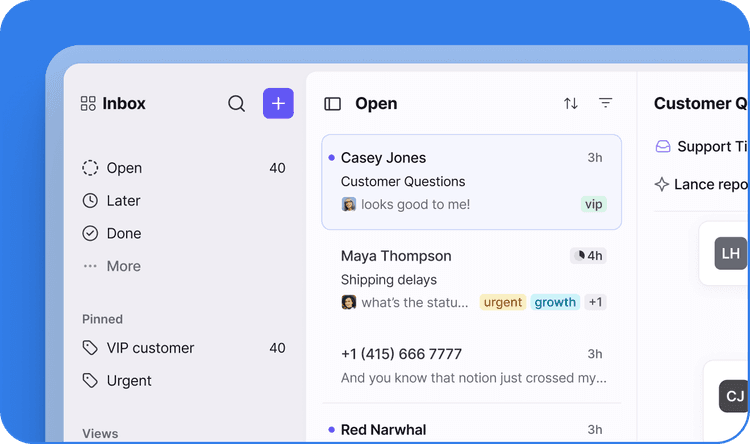
Front completely fixes the team email problem. You connect your existing accounts in seconds and start managing everything from one clean interface. The platform delivers the exact tools you need to work faster. Here are the key features you can expect with Front’s shared inbox.
Reduce email bloat
Stop the endless flood of internal notifications. A single workspace keeps everyone organized without destroying personal mailboxes.
Collaborate more easily
Teammates chat about specific messages using internal notes right next to the email thread. Just mention a colleague to instantly grab their attention.
Gain power over your email
Hit the snooze button when you are busy. You can set reminders so important messages pop back to the top of your list when you are ready to reply.
Assign ownership
Clear assignments stop duplicate replies. When one person answers and archives an issue, it syncs across the whole team. Everyone knows exactly where a conversation stands.
Automate workflows
Stop wasting time on repetitive sorting. You can build powerful automation rules to route messages, apply templates, and handle follow-ups automatically.
Gain email insights
Real analytics highlight how your team actually works. You can track your busiest hours, review common topics, and check response times. These insights help leaders adjust schedules and prevent burnout.
Access other apps in your inbox
Connect over fifty different apps directly to your workflow. You can pull data from Salesforce, Asana, or GitHub right into the conversation view. Developers can use the open API or googleapis to connect custom tools or internal KMS databases.
Measure performance
Built-in tracking features let you monitor individual metrics. You easily review resolution speeds and overall customer satisfaction